
- Place the router centrally and high, away from walls and appliances.
- Change default passwords and use strong WPA2 or WPA3 security.
- Fix weak spots with better placement or a mesh system before buying a faster plan.
The Short Answer
Most Wi-Fi problems come from router placement, old settings and too many devices, not from the speed you pay for. A few free changes can make your connection faster and safer.
Place the Router Well
Put the router in a central, open spot and raise it off the floor. Walls, metal, mirrors, microwaves and fish tanks weaken the signal. Point any antennas upright.
Avoid hiding it in a cupboard or behind the television. A few metres of movement can fix a room that gets no signal.
Secure It
Log in to the router settings and change the default admin password. Choose WPA2 or WPA3 security and a long Wi-Fi password that is not your name or phone number.
Turn off features you do not use, keep the router software updated and set up a separate guest network for visitors.
Fix Slow Spots
Test speed in different rooms. If a room is weak, move the router, switch to the 5 GHz band for nearby devices or add an access point or mesh unit. Use a cable for devices that stay in one place, such as a desktop or TV.
Restart the router now and then, and disconnect devices you no longer use.
Check Your Plan
If many people stream and work online at once, you may need a faster plan. Compare providers in your area and look at reliability, not just advertised speed.
Run a few speed tests at different times of day and keep the results. They help when you speak to your provider about problems.
Common Problems and Quick Fixes
If the connection drops, restart the router and check for loose cables. If it is slow only in the evening, many neighbours may be crowding the same channel, so try changing the channel in the router settings. If one device is slow, update it or forget and rejoin the network.
Keep a note of the router model and the support number of your provider.
Protect Smart Devices
Cameras, TVs, speakers and other smart devices connect to your network too. Change their default passwords, update their software and put them on a guest network if the router allows.
Remove devices you no longer use, because old gadgets are a common weak spot.
When to Use Cable or Extenders
A cable is the most reliable choice for desktops, game consoles and TVs that never move. For large homes, a mesh system usually works better than a basic range extender because it keeps one network name and a steadier speed.
Compare prices and reviews before buying, and place the extra units where they still receive a strong signal.
Action Checklist
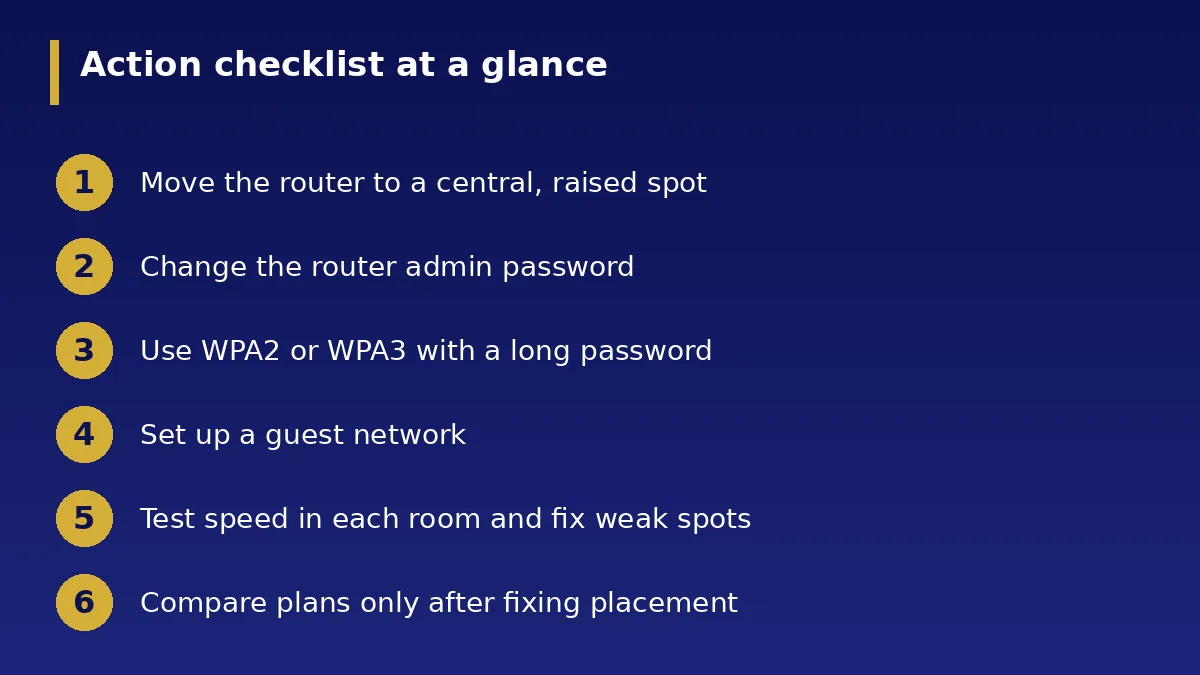
- Move the router to a central, raised spot
- Change the router admin password
- Use WPA2 or WPA3 with a long password
- Set up a guest network
- Test speed in each room and fix weak spots
- Compare plans only after fixing placement